Freshdesk DKIM Requirements
Note: If you’re using a custom mailbox, your mail will be sent from that infrastructure. In that case, the below DKIM guide is not applicable – you’ll contact the provider of the mailbox for support in enabling DKIM signing.
A quick guide to setting up DKIM in Freshdesk
To set up DKIM you need to first update your DNS records with the Freshdesk domain key so that it can be located and used for verifying signatures.
Follow the procedure below to enable DKIM signing:
- Login to your Freshdesk account as an admin.
- Go to Admin > Support Channels > Email Settings > DKIM Settings.
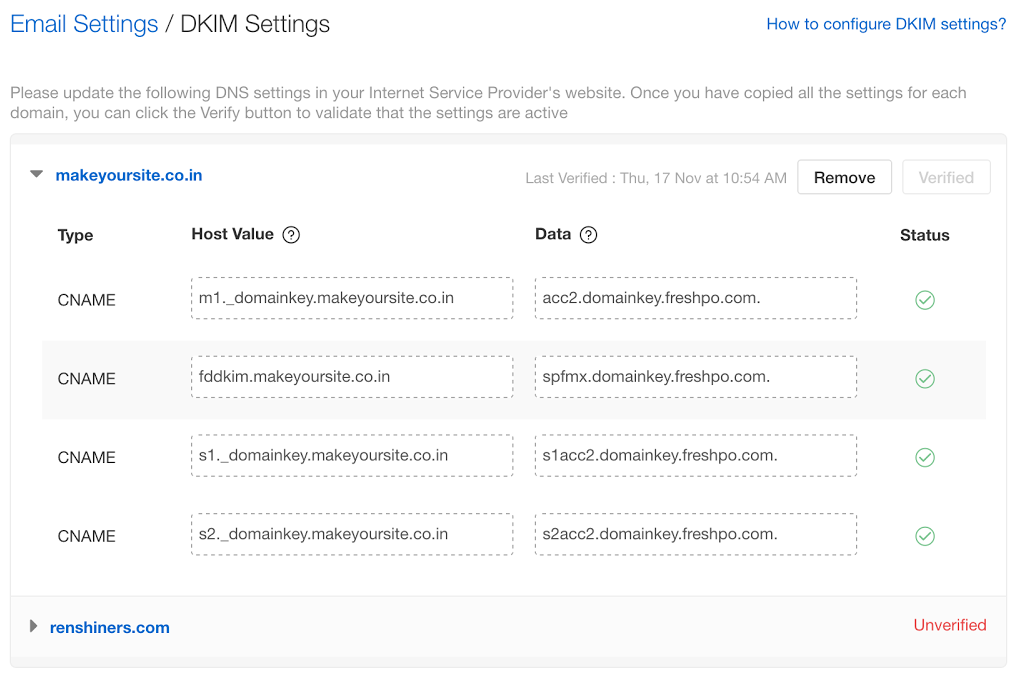
- Copy the system generated settings (4 CNAME records) to publish in your DNS server/domain provider’s account. This is a one-time configuration step per domain name. Note: If you’re using Sendmarc’s DKIM management, you’re able to add the DKIM keys directly in Sendmarc. Please only add the keys below that use ‘_domainkey’ in the host (ie. the first, third, and fourth entries in the below table). All other entries will need to be added directly in the DNS.
| Host | Type | Value |
|---|
| fdm._domainkey. | CNAME | acc1126827.domainkey.freshdesk.com |
| fddkim. | CNAME | spfmx.domainkey.freshdesk.com |
| fd._domainkey. | CNAME | fdacc1126827.domainkey.freshdesk.com |
| fd2._domainkey. | CNAME | fd2acc1126827.domainkey.freshdesk.com |
- Return to DKIM Settings in Freshdesk and click verify.
After verification (In Freshdesk)
Once DKIM is verified for a particular domain, a tick/cross against the DNS settings inside your helpdesk will indicate the status.